How to create an awesome flat responsive Portfolio

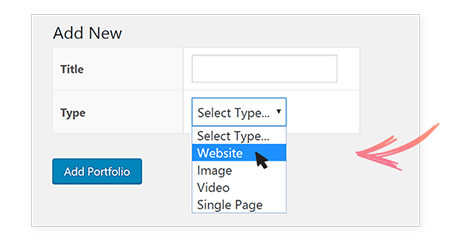
Step 1: Select Portfolio Type

What kind of portfolio do you wish to display? Is it a set of websites, images, videos or single pages that you wish to show your clients? This step allows you to select the type so that you can further customize it according to your needs.

 
Select-portfolio2


Step 2: Manage Portfolio Settings

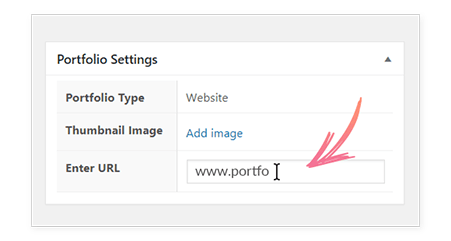
Customize the website, image or video you've just added. You can add a feature image, URL etc. depending on the type of portfolio you are working for. These settings will help you display an attractive portfolio with necessary information.


2.1  For website

Map-Portfolio-Settings
 
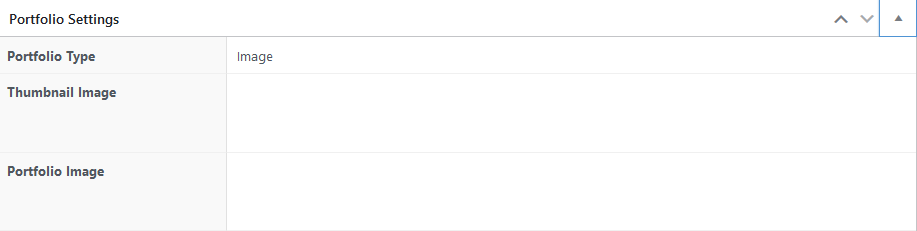
2.2 For Image
 
When the Portfolio Type is set to 'Image,' it is imperative to provide both a Thumbnail Image and a Portfolio Image, along with the category and tags if needed.


2.3 For Video
 
When the Portfolio Type is set to 'Video,' it is imperative to provide both a Thumbnail Image and a Video Url, along with the category and tags if needed.



2.4 For Single Page
 
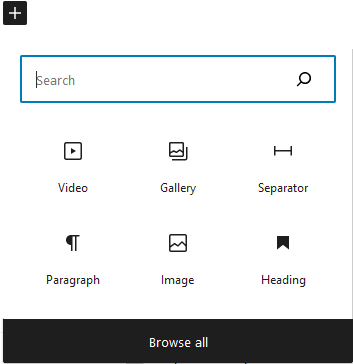
If the Portfolio Type is configured as 'Single Page,' a custom page will be dynamically generated, offering the option to upload a Thumbnail Image. This page can either open in the same tab or a new tab, depending on the user's preference. Furthermore, a variety of block types are available for inclusion; you may explore these options by clicking the 'plus' icon, and you have the flexibility to add as many blocks as needed.
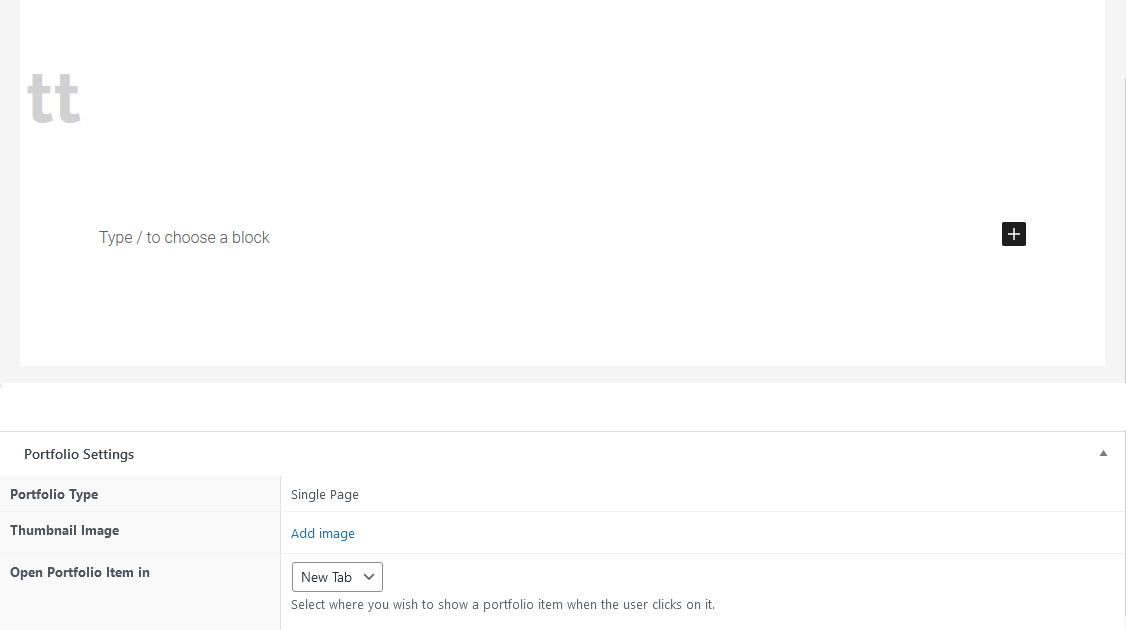
 
U can find many type of blocks here for more info refer to https://my.globymall.com/index.php?rp=/knowledgebase/7/How-to-Add-a-Blog-Post-in-WordPress.html
 
Upon completing your portfolio setup, it is important to remember to finalize the process by publishing your portfolio.

  • 1000 Kunder som kunne bruge dette svar
Hjalp dette svar dig?

Relaterede artikler

How do I change my email password

If you still remember your email password and you just want to use a different one, you can...

Adding And managing Products

Adding a product Before adding your first product, let’s get familiar with how product...

How to Add a Blog Post in WordPress

  How to Add a Blog Post in WordPress?   Log into your WordPress Dashboard. Go to Posts....

How to Link a Work Account to a Gmail Account

  1. Log into your Gmail account. Go to "Account Settings" in the upper-right corner of the...

Resource Limit Reached error

  If you are getting the following error any of our Linux based Shared hosting accounts:...