These steps are the same whether you're adding your first email account or additional email accounts to Outlook.
Use advanced setup to add a POP or IMAP email account in Outlook for Windows
You need to enter specific values for incoming and outgoing server names, port numbers, or SSL settings, you can use Outlook's advanced setup option. You can use these instructions to add a POP or IMAP account to Outlook.
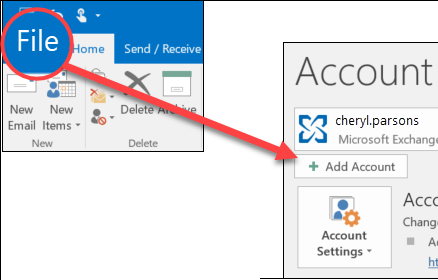
Open Outlook and select File > Add Account.
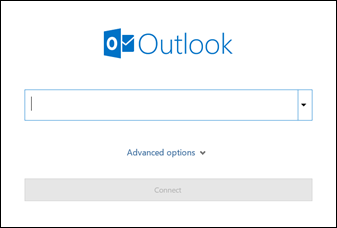
On the next screen, enter your email address, select Advanced options, then check the box for Let me set up my account manually and select Connect.
Select your account type. you'll select IMAP.
The Account settings screen should be pre-populated with most of the account settings you need. Enter your incoming and outgoing server settings and then select Next.
Secure SSL/TLS Settings
Incoming Server: sancho.superfasthost.co IMAP Port: 993
Outgoing Server: sancho.superfasthost.co SMTP Port: 465
Enter your password and then select Connect.